Word warning dialogs that interrupt conversions
ePublisher runs Microsoft Word hidden, so nobody can answer a dialog that Word opens during a conversion. When such a dialog has been waiting for an answer for 30 seconds while Word is idle, ePublisher closes Word and does not convert the document. The generation log records a warning that names the document and the dialog:
Microsoft Word showed the dialog "<title>" while applying the project's settings to the document '<source>.docx'. ePublisher runs Word hidden, so nobody can answer the dialog; ePublisher closed Word after 30 seconds and did not convert the document.The document is left out of the output, and AutoMap skips deployment. For the dialogs Word can show during a conversion and the Word settings that affect them, see Word Dialogs During Conversions and the Field Security Notice in the ePublisher Silent Installation Guide.
When your documents have comments or tracked changes, Word can show a warning dialog similar to the following figure.
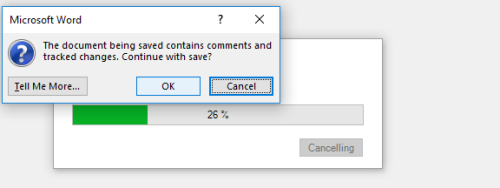
To prevent this dialog, turn off the Word option Warn before printing, saving or sending a file that contains tracked changes or comments. The following procedure provides an example of how to disable this option using Microsoft Word 2016.
To disable the "Warn before printing, saving or sending a file that contains tracked changes or comments" in a Microsoft Word source document
Open a Microsoft Word document, or even a Blank document.
On the Word menu, click File and then Options.
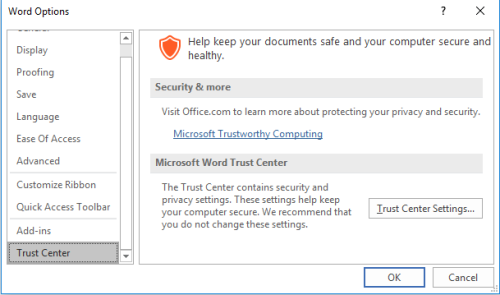
In the window that pops out in the left side menu click on Trust Center, and on the right side select Trust Center Settings. You should see a window similar to the following figure.
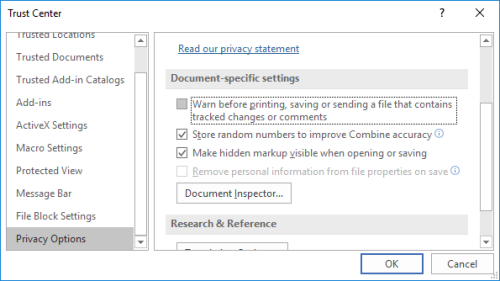
After selecting Trust Center Settings you'll see a new window, click on the left side on Privacy Options and on the right panel uncheck Warn before printing, saving or sending a file that contains tracked changes or comments. You should see a window similar to the following figure.
And finally click OK.